Linux
OS #
- tags
- , , ,
Linux CS #
env variables #
export XYZ=1set env variable in a shellunset XYZremove env variable from shell
Logging #
journalctl -f- [f]ollow new messages (like `tail -f` for traditional syslog):
journalctl -u kibana -fjournalctl --since *now|today|yesterday|tomorrow* --until YYYY-MM-DD HH:MM:SS- Filter messages within a time range (either timestamp or placeholders like “yesterday”):
journalctl _PID=pid- Show all messages by a specific process:
Process #
Files #
Users #
Kernel #
lsmodShows the status of linux kernel modules.modprobeAdd or remove modules from the Linux kernel.
Binary directories #
Bin is an abbreviation of Binaries. It’s just a directory where a user of an operating system can expect to find applications. Bin directory contains executable files that you have in your system. ref ref
/bin #
The /bin directory contains binaries for use by all users. The ‘/bin’ directory also contains executable files, Linux commands that are used in single user mode, and common commands that are used by all the users, like cat, cp, cd, ls, etc. According to the FHS the /bin directory should contain /bin/cat and /bin/date (among others). The ‘/bin’ directory doesn’t contain directories.
/sbin #
The /sbin contains binaries to configure the operating system. The ‘/sbin’ directory also contains executable files, but unlike ‘/bin’ it only contains system binaries which require root privilege to perform certain tasks and are helpful for system maintenance purpose. e.g. fsck, root, init, ifconfig, etc. Many of the system binaries require root privilege to perform certain tasks.
/lib #
The ‘/lib’ directory contains shared libraries which are often used by the ‘/bin’ and ‘/sbin’ directories. It also contains kernel module. These filenames are identable as ld* or lib*.so.*. For example, ld-linux.so.2 and libfuse.so.2.8.6. Below is an example of the partial contents of /lib.
/opt #
The ‘/lib’ directory contains shared libraries which are often used by the ‘/bin’ and ‘/sbin’ directories. It also contains kernel module. These filenames are identable as ld* or lib*.so.*. For example, ld-linux.so.2 and libfuse.so.2.8.6. Below is an example of the partial contents of /lib.
Linux Commands #
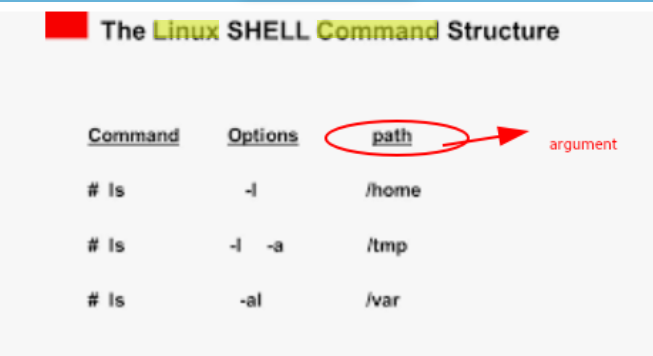
Linux Command Structure #
Command <options> <arguments>
Examples #
- options start with “-”, compliance
- arguments are followed by options like variables
ls -l(o) /home(a)
Linux commands to attach and detach process to terminal #
linux command “jobs” #
BASH builtin for viewing information about processes spawned by the current shell. More information: https://manned.org/jobs.
View jobs spawned by the current shell: jobs
List jobs and their process IDs: jobs -l
Display information about jobs with changed status: jobs -n
Display process ID of process group leader: jobs -p
Display running processes: jobs -r
Display stopped processes: jobs -s
linux command “bg” #
Resumes jobs that have been suspended (e.g. using `Ctrl + Z`), and keeps them running in the background. More information: https://manned.org/bg.
Resume the most recently suspended job and run it in the background: bg
Resume a specific job (use `jobs -l` to get its ID) and run it in the background: bg %job_id
linux command “fg” #
Run jobs in foreground. More information: https://manned.org/fg.
Bring most recently suspended or running background job to foreground: fg
Bring a specific job to foreground: fg %job_id
Using the & Operator #
Using nohup #
The nohup command is used to run a command in a way that is immune to “hangups” or terminal disconnections. When we start a command using nohup, the command redirects the output to nohup.out:
More ways here #
Linux Process #
- tags
- ref
Foreground process #
Every process when started runs in foreground by default, receives input from the keyboard, and sends output to the screen.
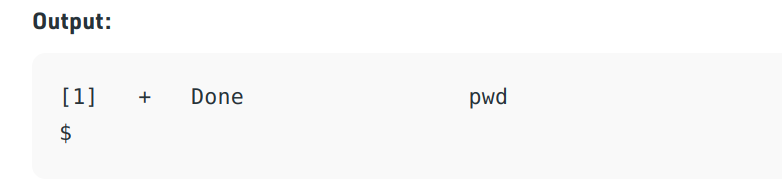
pwd
When a command/process is running in the foreground and is taking a lot of time, no other processes can be run or started because the prompt would not be available until the program finishes processing and comes out.
Linux Process management #
ps #
-a: Shows information about all users -x: Shows information about processes without terminals -u: Shows additional information like -f option -e: Displays extended information
ps -aux | grep java
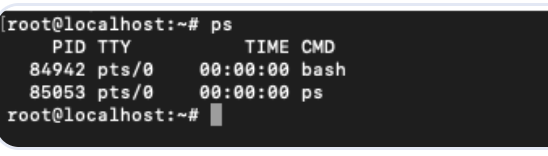
PID process ID TTY terminal type TIME total time the process has been running
top #
kill #
Kill process
kill 19
kill process running at port
kill $(lsof -t -i:8080)
Kill process violently
kill -9 19
fg #
Process running at port #
lsof -i:8080
bg #
Background process #
It runs in the background without keyboard input and waits till keyboard input is required. Thus, other processes can be done in parallel with the process running in the background since they do not have to wait for the previous process to be completed. Adding & along with the command starts it as a background process
pwd &