Docker
Summary fc #
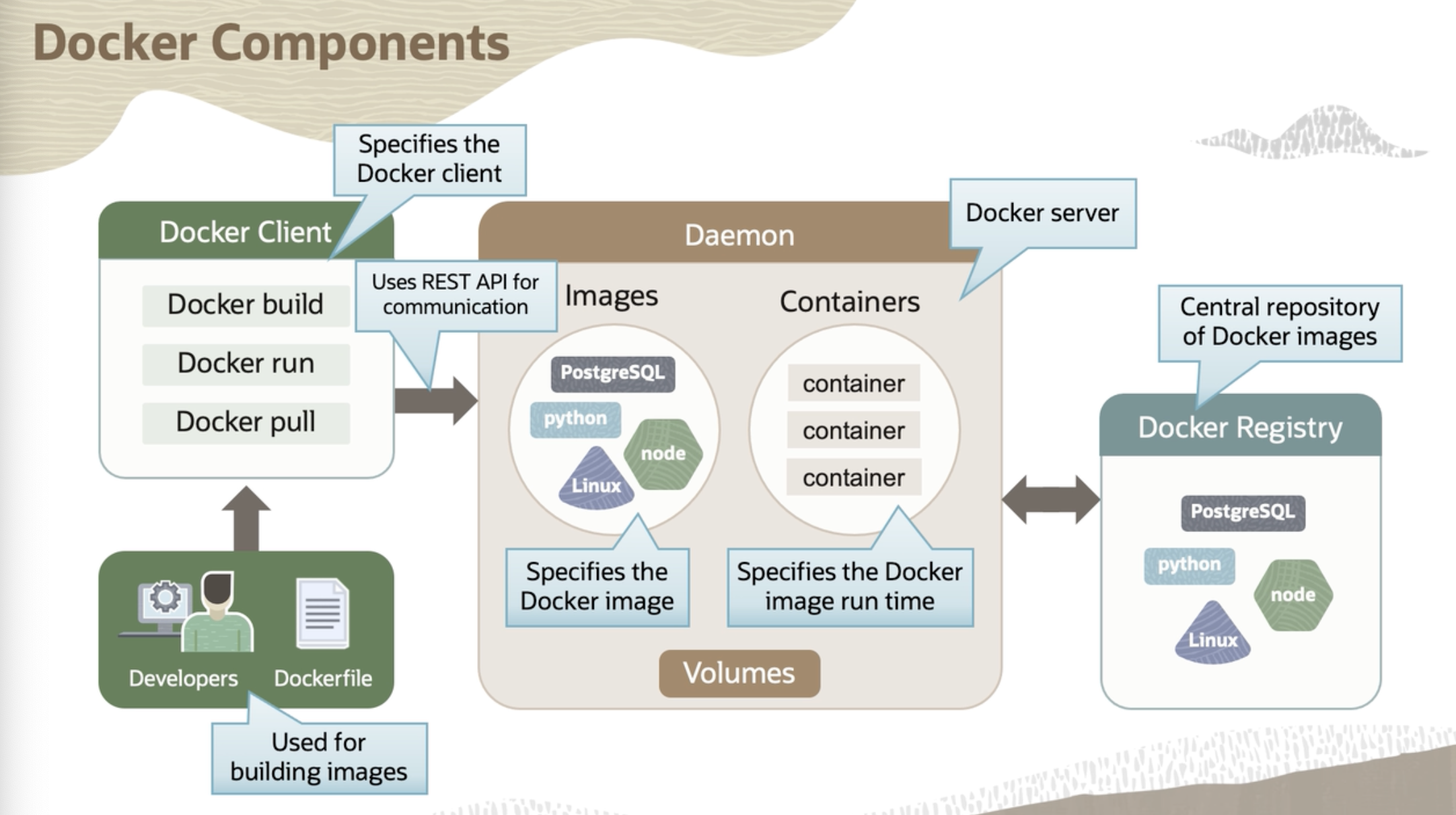
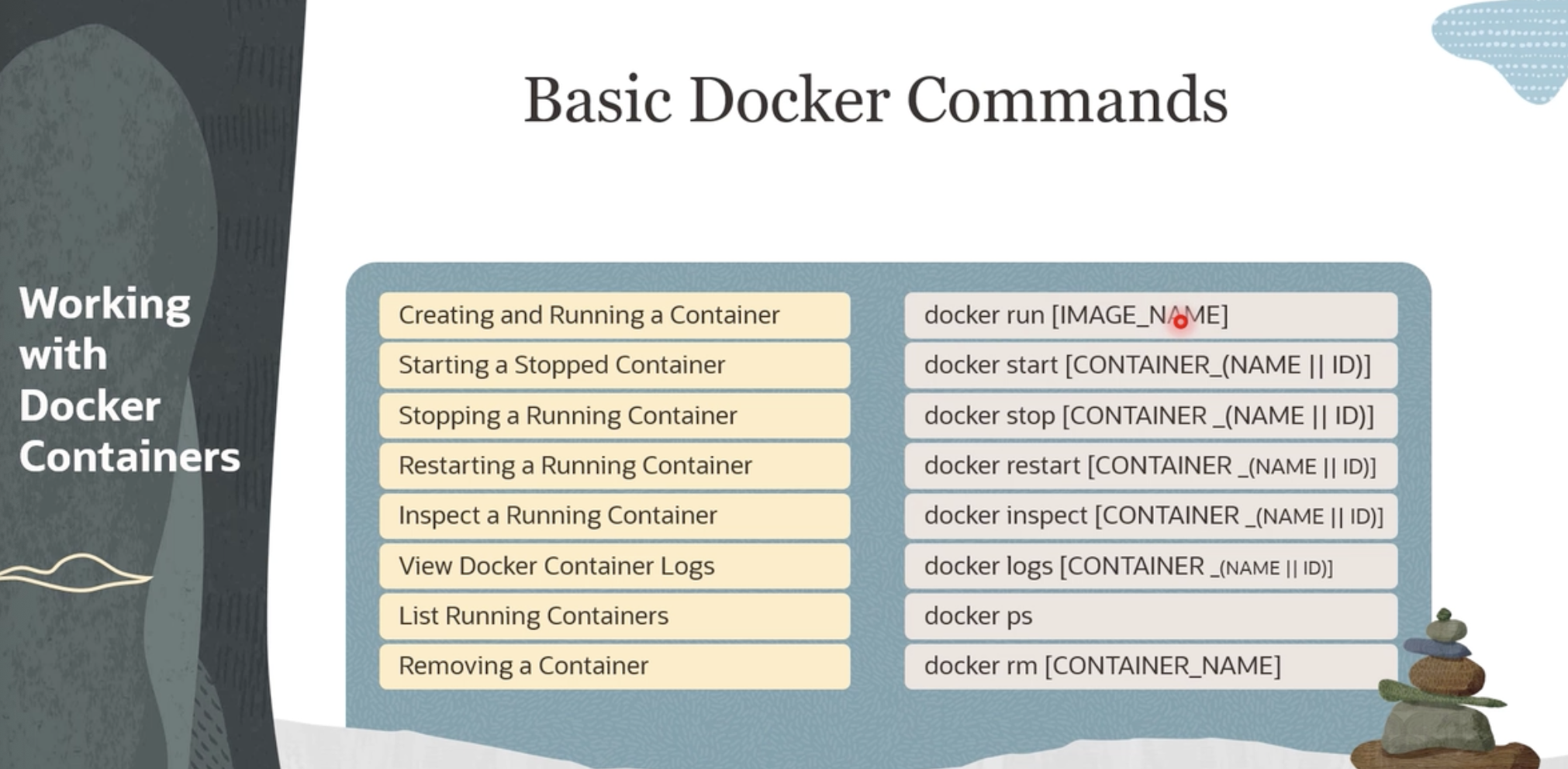
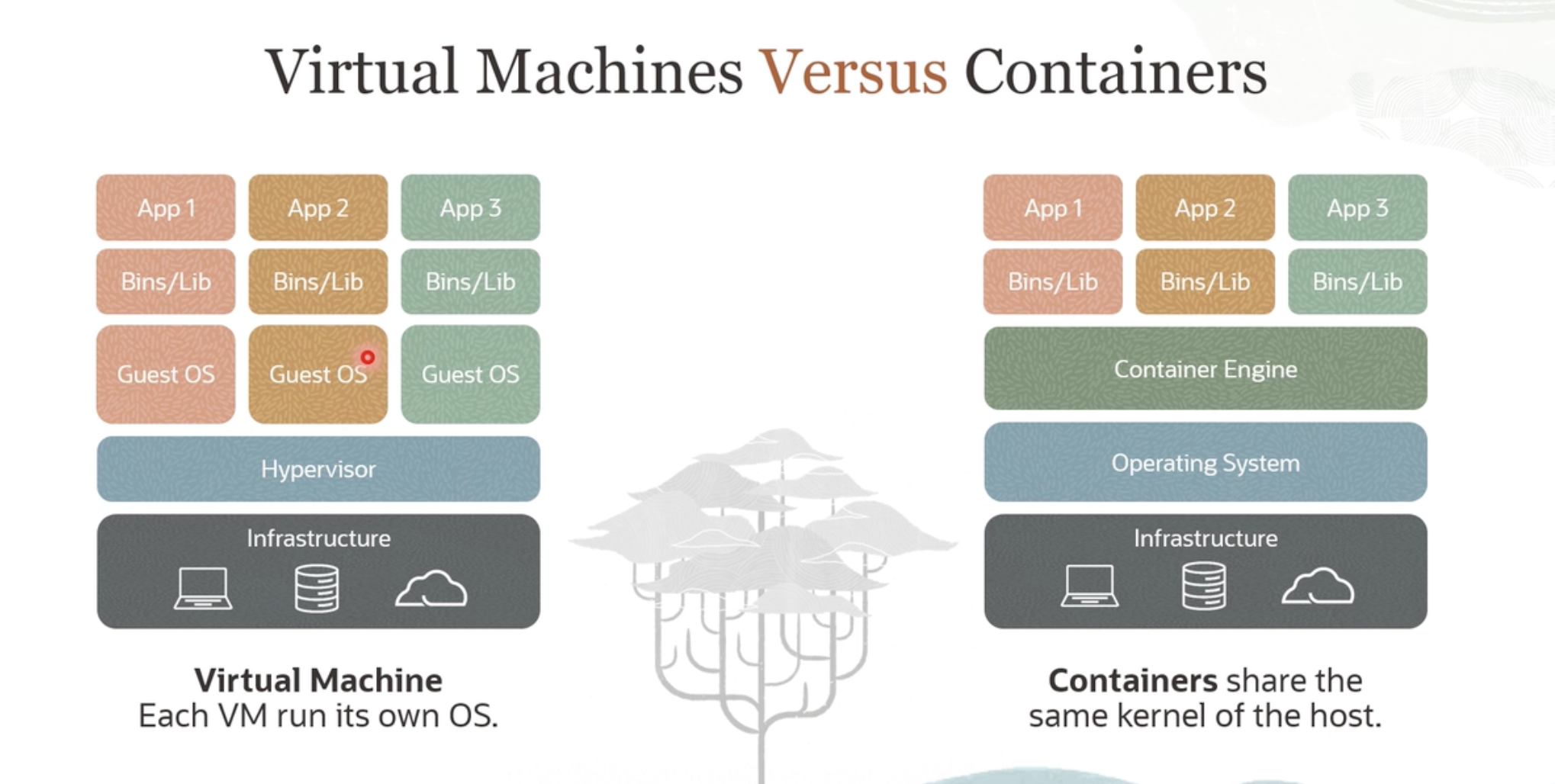
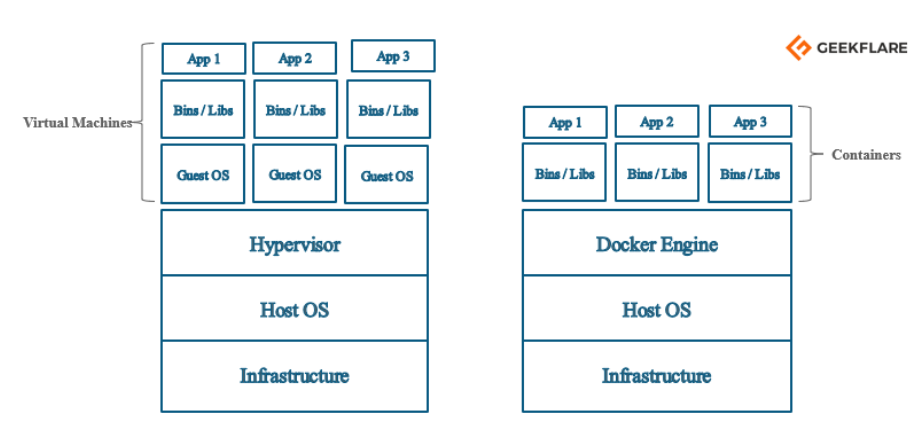
What Hypervisor is to hardware(RAM, CPU etc) Containers are for OS: they virtualize. Hypervisor virtualizes harware and containers virtualize OS.
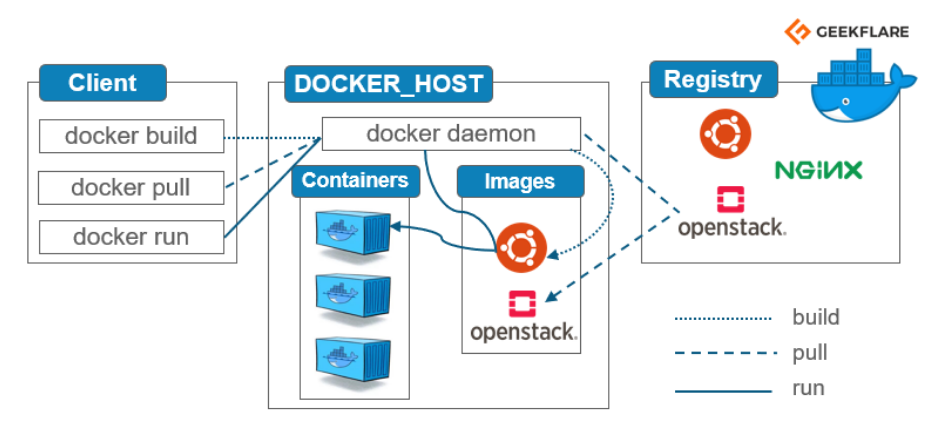
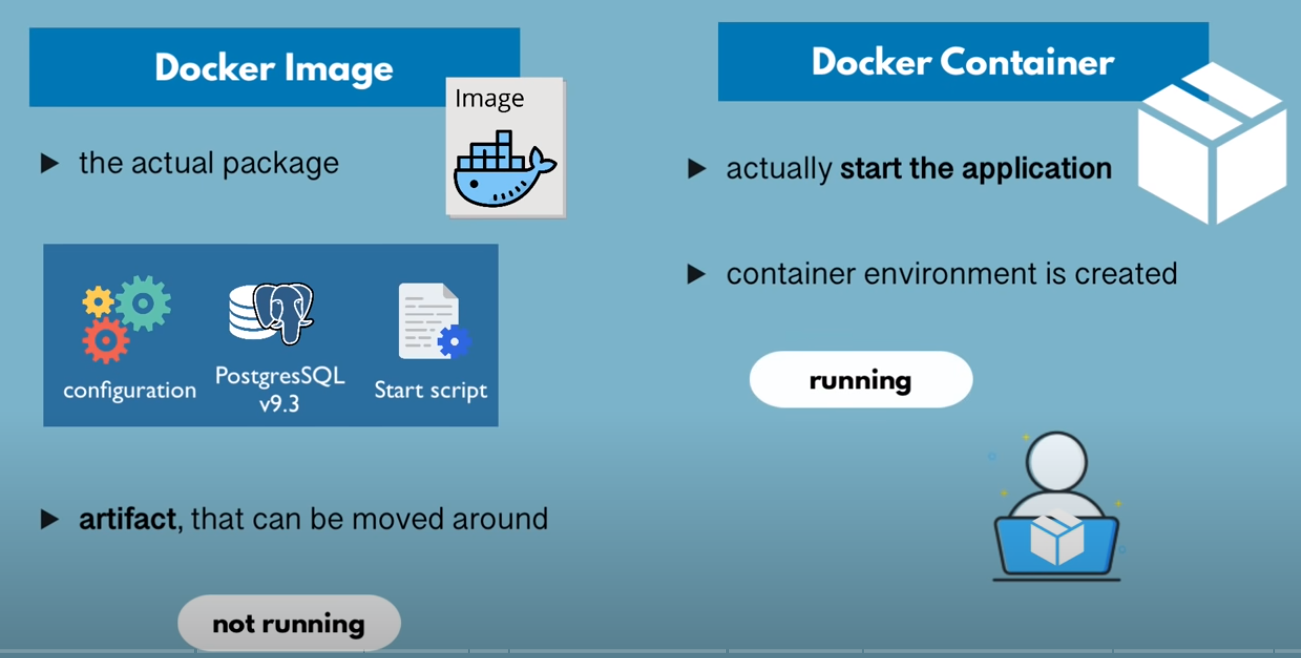
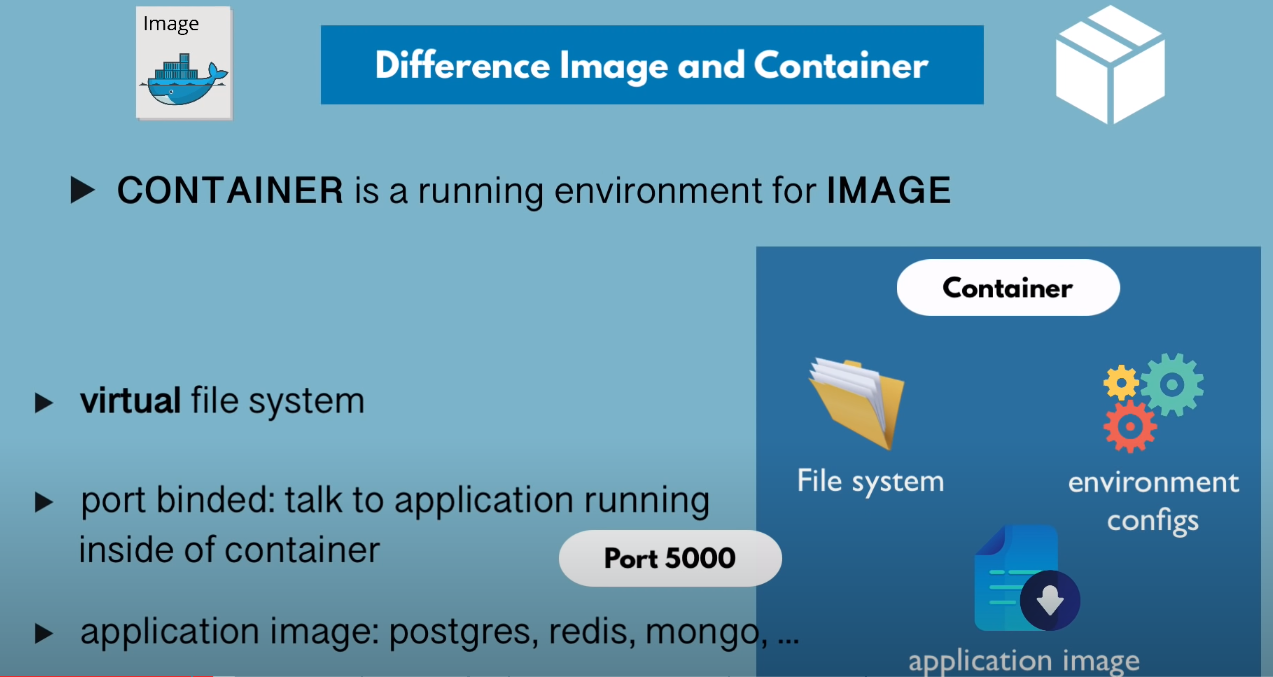
Docker than be thought as cross technology stack package manager. Images are packages and when they are made to run they become container.
Docker components #
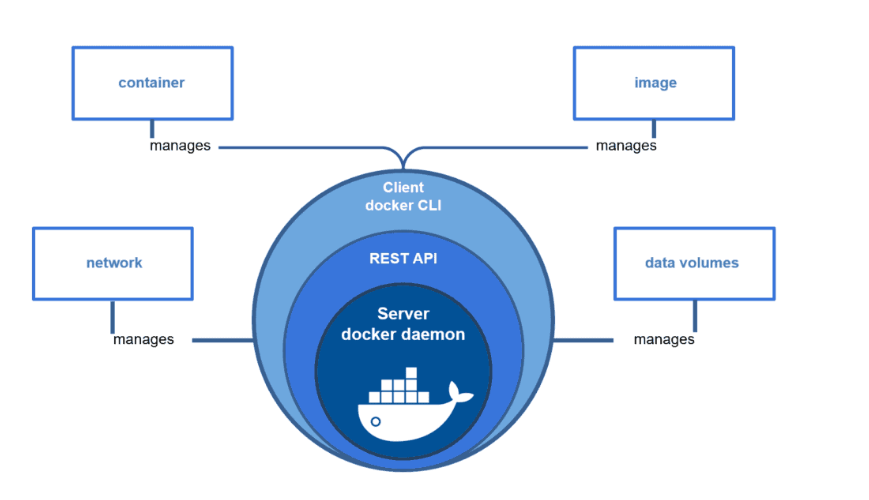
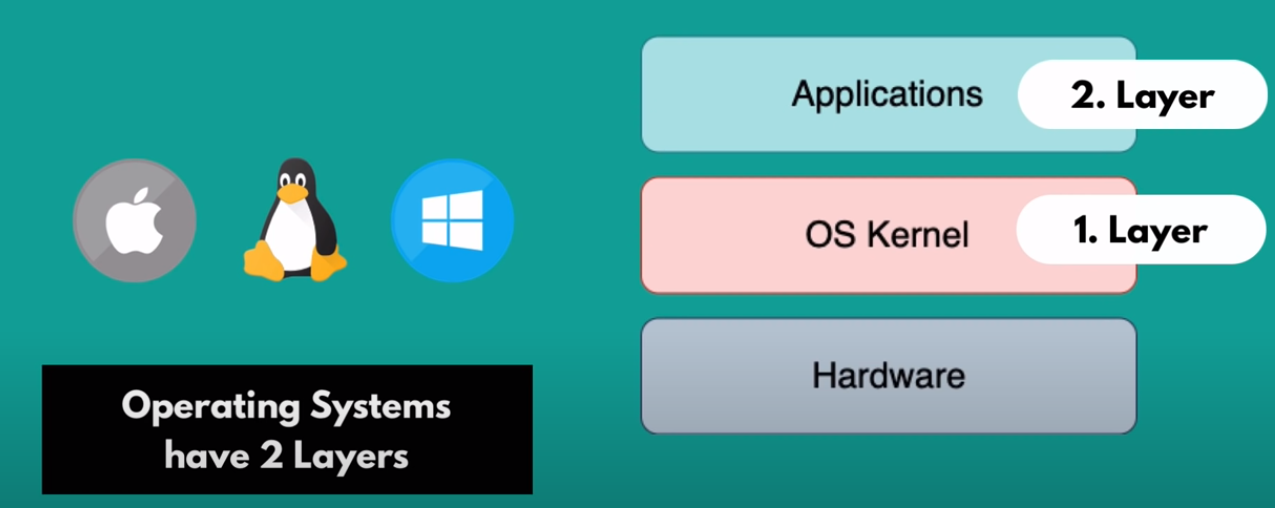
OS #
Dockver vs Virtualmachine #
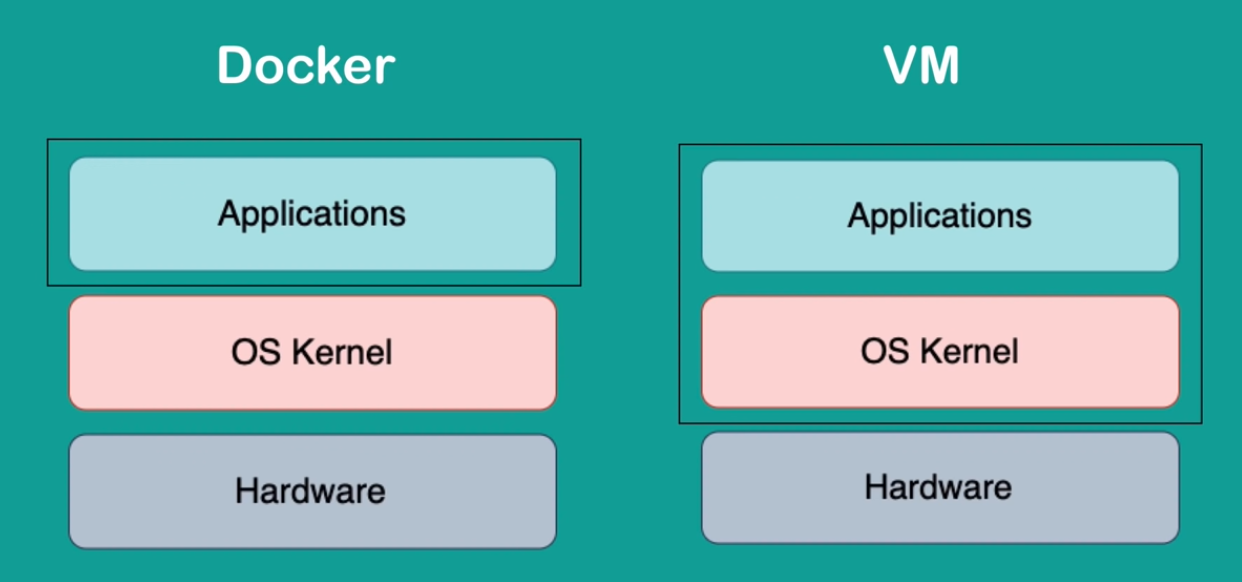
image vs container #
Installation #
Follow this official docs for the installation: https://docs.docker.com/engine/install/debian/
macOS #
Run Docker as Non root user #
minikube won’t start if docker is run as root user
Manage Docker as a non-root user (ref) #
https://docs.docker.com/engine/install/linux-postinstall/ The Docker daemon binds to a Unix socket instead of a TCP port. By default that Unix socket is owned by the user root and other users can only access it using sudo. The Docker daemon always runs as the root user. If you don’t want to preface the docker command with sudo, create a Unix group called docker and add users to it. When the Docker daemon starts, it creates a Unix socket accessible by members of the docker group.
- Logout and then login again for the group thing to take affect.
Unix socket vs IP socket(TCP/IP)
Why Docker container should be run as non root user? fc #
https://medium.com/@mccode/processes-in-containers-should-not-run-as-root-2feae3f0df3b An example will show the risk of running a container as root. Let’s create a file in the /root directory, preventing anyone other than root 1from viewing it:
marc@srv:~$ sudo -s
root@srv:~# cd /root
root@srv:~# echo "top secret stuff" >> ./secrets.txt
root@srv:~# chmod 0600 secrets.txt
root@srv:/root# ls -l
total 4
-rw------- 1 root root 17 Sep 26 20:29 secrets.txt
root@srv:/root# exit
exit
marc@srv:~$ cat /root/secrets.txt
cat: /root/secrets.txt: Permission denied
I now have a file named /root/secrets.txt that only root can see. I’m logged in as a normal (non-root) user. Let’s create a Docker image from this Dockerfile:
FROM debian:stretch
CMD ["cat", "/tmp/secrets.txt"]
_ And finally, let’s run this Dockerfile, bind-mounting a volume from the /root/secrets.txt file that I cannot read to the /tmp/secrets.txt file inside the container:
marc@srv:~$ docker run -v /root/secrets.txt:/tmp/secrets.txt <img>
top secret stuff
Security Risk
Even though I’m marc, the container is running as root and therefore has access to everything root has access to on this server. This isn’t ideal; running containers this way means that every container you pull from Docker Hub could have full access to everything on your server (depending on how you run it).
Concepts #
Dockerfile #
Docker Image (code with all its dependencies) #
A Docker image is an immutable file that contains the source code, files, binaries libraries, dependencies, tools, and other files needed for an application to run. To run an application inside an isolated container running on an OS.
docker build -t getting-started . #from the dir that contains Dockerfile
Docker Container (running instance of code) #
Command to start a container from an image
docker run -dp 3000:3000 getting-started
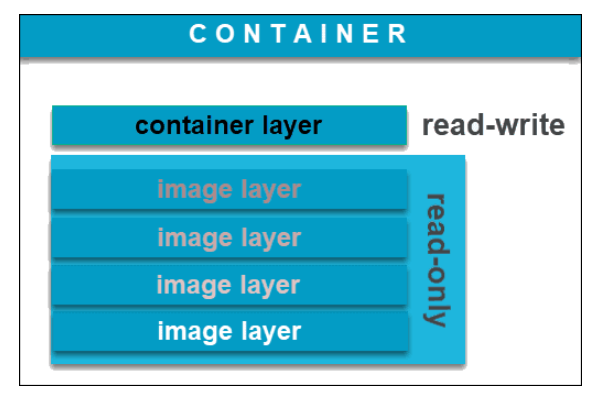
Difference between Dockerfile, image and container? #
- A Dockerfile is a recipe for creating Docker images
- A Docker image gets built by running a Docker command(using Dockerfile)
- A Docker container is a running instance of Docker image.
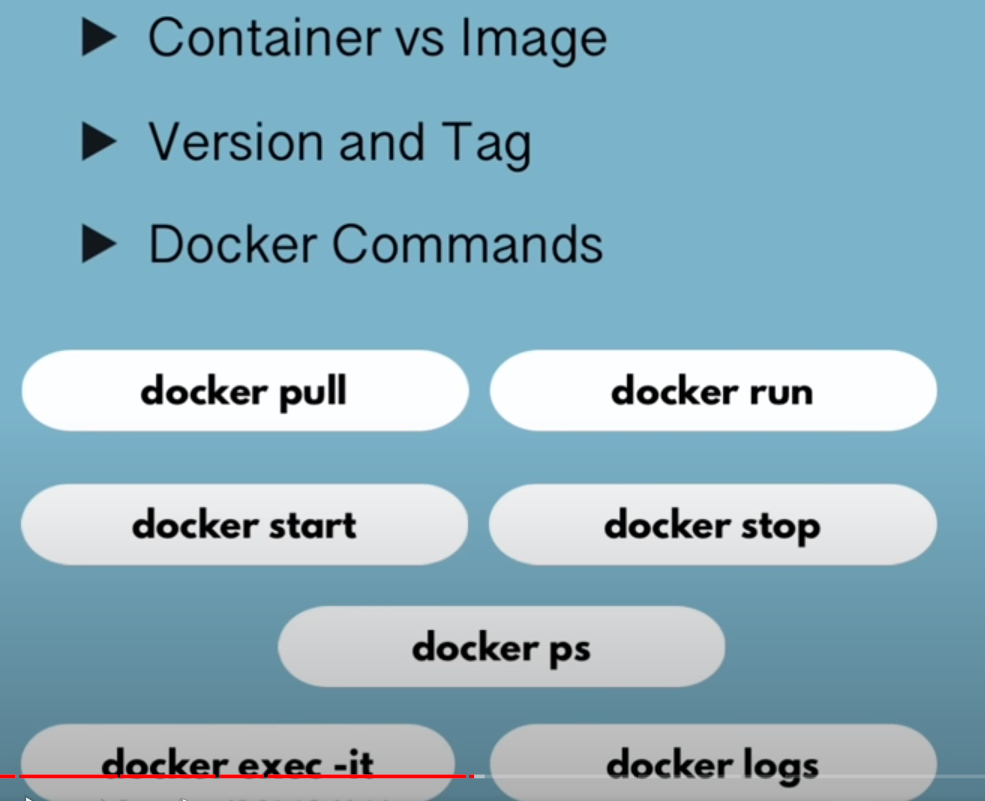
Commands #
Why Containers(Docker)? #
Docker enables more efficient use of system resources #
Hypvervisor vs Containers #
virtualizing hardware(CPU, RAM, e.t.c) vs virtualizing OS
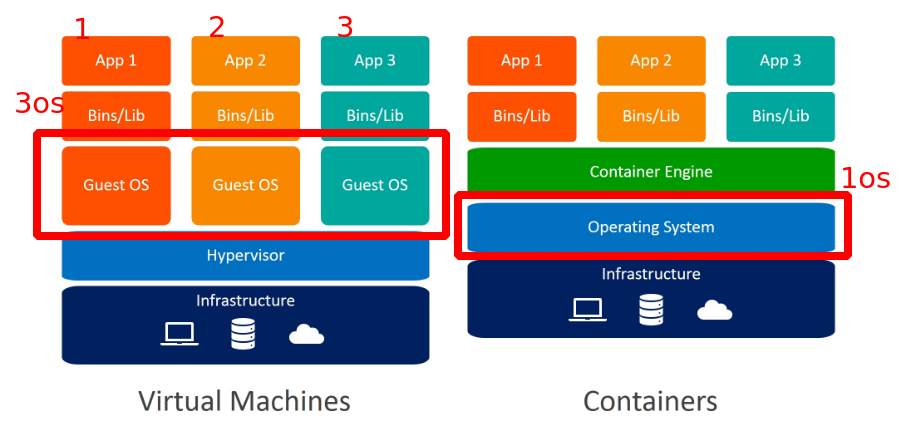
3os vs 1os #
- less resources(CPU vs RAM) used
- less licenses needed
Docker shines for microservices architecture #
Code reuse or Building microservices on existing images #
Containers are immutable #
- No manual changes in server or no quick fixes
- easier to spawn new service than fixing existing one
- Makes scalable, portable
Docker enables faster software delivery cycles #
- faster startup time
- faster build
- easy to scale services
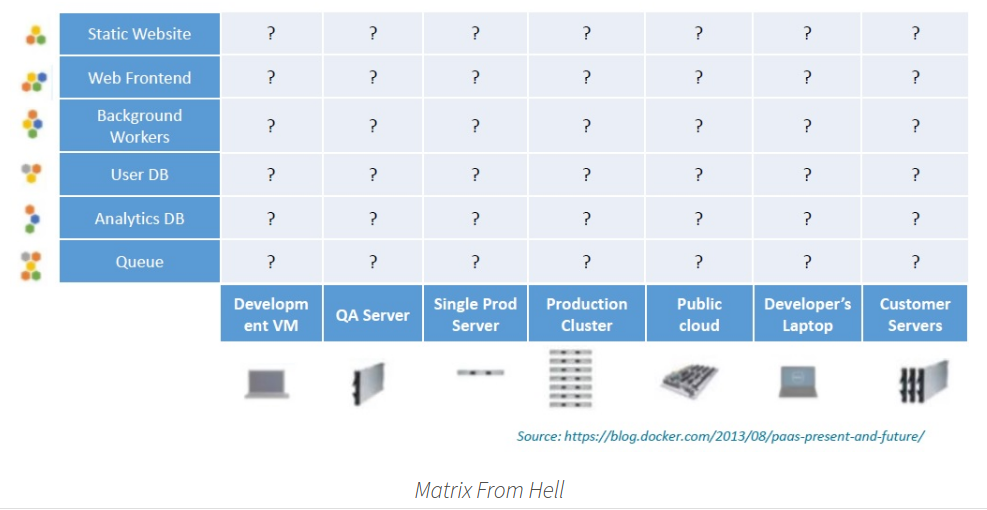
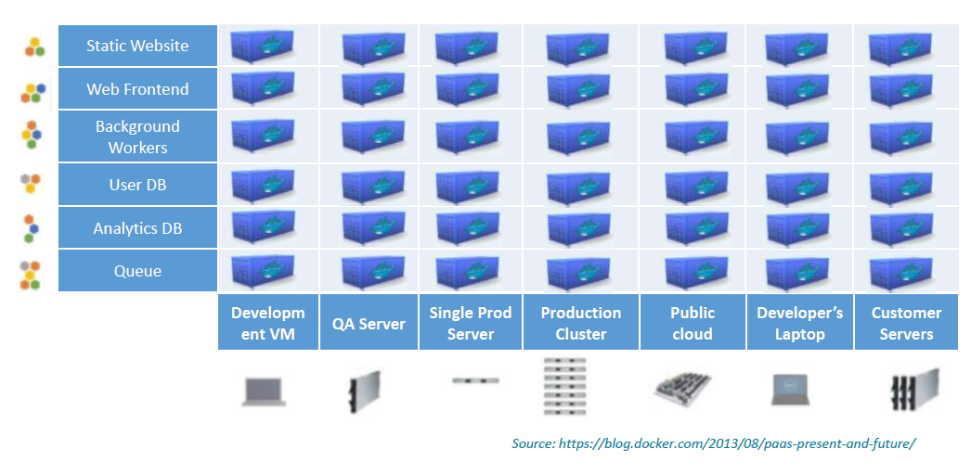
Solves “Matrix from Hell” problem or setting up environments issue #
Problem #
Solution #
Using Kubernetes to Manage and orchestrate Containers #
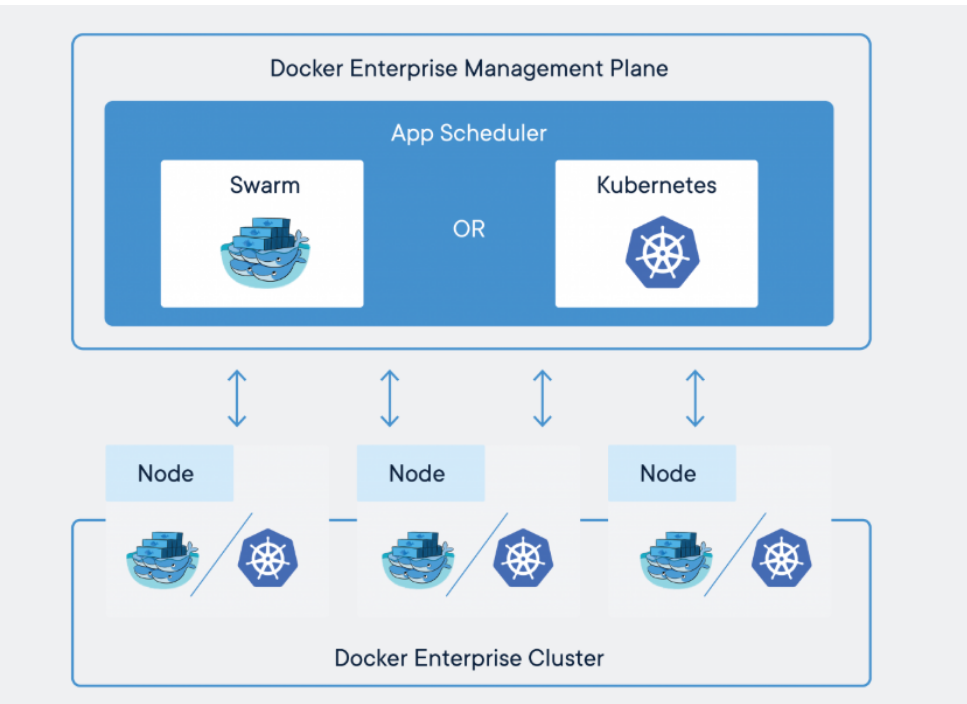
- Add nodes(machines) to the cluster
- it will manage container deployment, whole life cycle
- rolling upgrades
- scaling and auto scaling when load increases
- transparency: what services running where?
- Declarative YAML files
- Easier to manage containers with Kubernetes than individually
Problems Docker containers don’t solve #
Docker won’t fix your security issues #
Docker doesn’t turn applications magically into microservices #
Docker isn’t a substitute for virtual machines #
Refs #
- https://www.infoworld.com/article/3310941/why-you-should-use-docker-and-containers.html
- https://kumargaurav1247.medium.com/need-of-container-orchestration-a9f5dfbee0e3
- https://crunchytechbytz.wordpress.com/2018/01/23/introduction-to-docker/
Docker CLI SSL verification #
Add the root CA and intermediate CS to the path docker ref
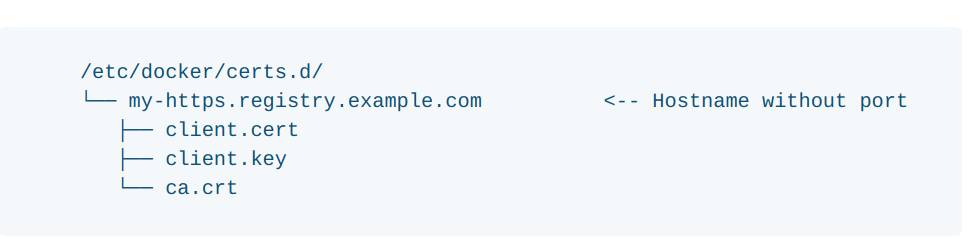
/etc/docker/certs.d/harbor.kfupm.edu.sa
 hen tag and push the images, tested with Harbor registry
docker login https://harbor.kfupm.edu.sa/kfupm_registry
 docker tag mongo harbor.kfupm.edu.sa/kfupm_registry/mongo:latest
 docker push harbor.kfupm.edu.sa/kfupm_registry/mongo
Moving docker images to a new storage location #
By default the images are stored at `/var/lib/docker` ref
sudo systemctl stop docker # stop docker service
sudo mv /var/lib/docker /mnt/data # move the default directory
 sudo ln -s /mnt/data/docker /var/lib/docker # create softlink from new docker dir to default dir
sudo systemctl start docker # start docker
Mounting volumes into the container #
https://stackoverflow.com/a/32270232/5305401 https://docs.docker.com/storage/bind-mounts/#configure-bind-propagation
Debug #
# 1.
       docker logs container_id
 # 2.
      docker inspect container_id